Showing posts with label google+. Show all posts

Wednesday, 27 November 2013

Google+ - what is it and how to get started using it


Google+ is Google's social network and it has become my preferred social network. Facebook has gotten too political, although I do use it to keep in touch with friends and family. Twitter is great, but Google+ offers so much more - photos, videos, animations, longer postings and comments.

It is a thriving community, with people and groups for all interests, including education and technology.

If you aren't on Google+, check it out. Here are some resources.


Related Articles:
Google Plus - tips for using in education, facts and data infographic

Social Media Guide and Resources for Educators

Wednesday, 20 November 2013

Google announces 5 New GAFE Courses for Teachers and Admins


Google Apps for Education

Google has an excellent selection of free courses and training materials for Google Apps and more. (see a bunch here).

They have just announced 5 new online courses for teachers and administrators on Google for Education that were designed by educators.

New Courses include: Internet 101, Apps for Education, Gmail, Drive, Chrome and Chromebooks. They are self paced and well designed.

You can find the new courses here: https://educourses.withgoogle.com/course

This is a great resource for all educators.


Google for Education Resources:
http://educationaltechnologyguy.blogspot.com/p/google-for-educators_22.html


Tuesday, 5 November 2013

Google launches Google Connected Classrooms with Virtual Field Trips


Google just announced Google Connected Classrooms, which allows classes to take virtual field trips using Google+ Hangouts. 

Field Trip locations include the Seattle Aquarium, Minnesota Zoo, American Museum of Natural History, the Philadelphia Museum of Art and more. More trips are coming also. 

The field trips are live hosted events, but past events are archived and can be viewed later. Teachers can also work together on plans and activities. 

This is a great resource for teachers and students to be able to learn and explore without ever leaving the classroom. 


Tuesday, 25 June 2013

Google Reader is Shutting Down July 1st - here's a great replacement


Lots of people use Google Reader as their RSS feed reader, including a few thousand who follow this blog using the RSS feed. Google is shutting down Google Reader as of July 1st. Here's how you can backup your subscriptions and a great replacement you can use.

You can export your Google Reader Data (subscriptions) using Google Takeout. Google Takeout actually lets you export pretty much all your Google account data. You go to Google Takeout, and go to the Reader page and click "Create Archive". This will then download all of your feeds, people you follow, starred items and more. When the file is completed, click download. The subscriptions.xml file in the zip file is your subscriptions that you will need to import into other readers.

The app I am using to replace Google Reader is Feedly. It has a web version, plus an Android and iOS app. It's easy to use, can be setup to look like Google Reader, or even better with some cool views with pictures and preview text. The apps sync with the web so no matter what device you use, your feeds will be up to date. It's also free. I've been using it for about a month and love it.

Feedly even has a one-click Google Reader import to make it easy to switch.

Remember, you need to export your data, or import into Feedly before July 1st!


Related:

Google Takeout - Take your Google Account Data with you (or just back it up)

Google for Educators Resources

Why I Use Google's Products as an Educator


Wednesday, 22 May 2013

Google accepting applications for next Google Teacher Academy (GTA) in Chicago July 24-25


Google is now accepting applications for the next Google Teacher Academy (GTA) in Chicago, Illinois on July 24-25. This is a great, free, professional development experience for educators that Google runs around the world. Teachers who have attended always give it rave reviews. If you use Google's tools, or plan to, and want to learn how to use them more effectively in education, this is your chance. 

The GTA is a free professional development experience designed to help educators from around the globe get the most from innovative technologies. Each Academy is an intensive, two-day event during which participants get hands-on experience with Google's free tools, learn about innovative instructional strategies, share with and teach colleagues, and immerse themselves in a supportive community of educators making impact.

Apply by June 10. Learn more and access the application on our webpage.   #gtachi

Educators who attend a Google Teacher Academy become Google Certified Teachers (GCTs). GCTs are:
  • Outstanding educators with a passion for using innovative technologies and approaches to improve teaching and learning.
  • Creative leaders who understand opportunities and challenges, and have a desire to help empower others in their local community and beyond.
  • Ambassadors for change who model high expectations, life-long learning, collaboration, equity, and innovation.
They also receive access to more resources and events from Google. 


Monday, 20 May 2013

Google Apps and Chromebooks Training Resources


I put this list together for our district as we are going with GAFE and Chromebooks and I figured I'd share it here too. 

Chromebooks


Miscellaneous Computer and Tech Help
Free online resources on computers  http://www.gcflearnfree.org/computers


Friday, 26 April 2013

Quick and easy way to add memory to your Chromebook


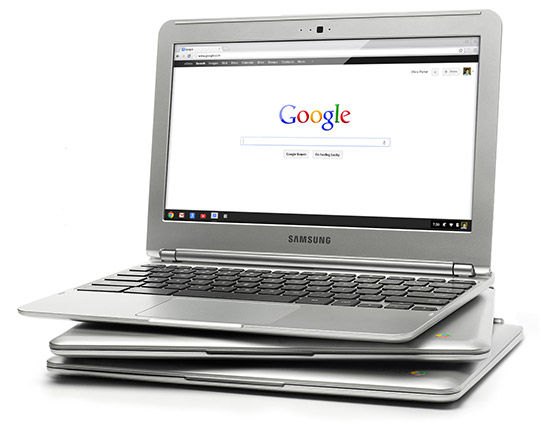
I've been using a Chromebook since getting a CR-48 from Google a few years ago, and I love it. I am currently using a Samsung Chromebook, and our district is deploying over 5000 of them.

The Chromebooks, and Chrome OS in general, are fast and work great, but every once in a while they can bog down when doing serious multitasking. Many only have 2GB of RAM and do not offer the ability to add more RAM physically. I found out about a great way to increase your memory by using zRam which uses swap space on your hard disk/SSD. Kevin C. Tofel shared this great resource that is very easy to do.

Here are the simple steps:

  1. Open up a terminal tab with the CTRL + ALT + T keys.
  2. Type “swap enable” (without the quotes).
  3. Restart your Chromebook.
It's that easy. I did it and my Chromebook runs much smoother and faster and rarely bogs down, even with 15+ tabs open. 

Disabling it is easy too. Do all of the steps but type "disable" instead of "enable".

Give it a try and see how it improves your Chromebook's performance. 


Related:


Google Keep, Google's Note Taking App, get's some improvements and new features.


Google’s Keep, Google's easy to use note taking app, has some new features, improved features and bug fixes. Here is the list of new features from the Google Play Store.

• Create notes, lists, and audio notes
• Add photos to any note
• Hide and show checkboxes to turn notes into checkable lists
• View and create notes from homescreen and lockscreen widgets (lockscreen widgets require Android 4.2+)
• Selectable color for notes
• Safely sync notes to Google Drive and other devices
• Notes can also be used from http://drive.google.com/keep


I use Evernote for most things, but also use Keep for quick notes on the go, along with voice notes, and then I can share the notes to other apps, or just access them as needed.


Thursday, 21 March 2013

Google Keep note taking service launched


Google Keep

Google has just launched Keep, a note taking service, that is free. It is a cool note taking system, that allows you to quickly jot down notes, checklists, transcribe a voice memo, search your notes, and more.

Your notes are saved in Google Drive and synced to all of your devices. There is an Android app for Android 4.0+ and you can access, edit and create new notes on the web at http://drive.google.com/keep and Google will be adding these functions directly in Google Drive shortly.

It has a nice layout, using boxes instead of text and you can rearrange the notes based on your needs and priorities and you can color code your notes.

Knowing that I am a huge user of Evernote, many people have asked me about Google Keep. I will be using both. Evernote has many more features that I use and I have over 4900 notes in Evernote. However, I find Evernote a little more cumbersome for quick note taking on my phone or tablet. So, I'm going to be using Keep for quick notes on the go, along with voice notes, and then I can share the notes to other apps, or just access them as needed. I don't feel like I have to choose one note taking app, but rather that I can use two or more based on my needs.

Here's a nice video overview of Google Keep:


Evernote Resources


Thursday, 24 January 2013

Google Slides now available offline!


Google Docs/Drive is a great, free resource that allows you to create, edit, share, collaborate on, and comment on Documents (Docs), Spreadsheets (Sheets), and Presentations (Slides), all online. Think Microsoft Office in the cloud with some other great features.

I use Google Slides (Presentations), the equivalent of PowerPoint, for all of my presentations. I like the features it has and like that I can easily share it online and people will always be able to see the newest version. One downside was that you needed an internet connection and some conferences I have presented at can have WiFi issues due to all of the devices being used. I would always save a copy of my presentation as a PDF file to my laptop in case I didn't have a good internet connection. That is no longer necessary.


Google has announced that Google Slides will now be available with offline support. You can now create, edit, comment, and present your Slides presentation without an internet connection. When you get an internet connection, your new presentations or changes will be automatically updated online. Docs has had this for a while already.

This is a great feature that makes Slides even more useful, along with Chromebooks, for people who need to work on, or present, their presentations where they may not have WiFi. It's also great for schools who issue Chromebooks to students that may not have internet at home. Our district is going with Chromebooks and student internet access at home is a concern. That is less of a concern now.

To enable offline Docs/Sheets/Slides, follow these instructions. If you already have offline enabled for Docs, you are all set. In order to use the offline feature, you will have to use Chrome browser or Chrome OS.

Google is currently working on offline support for Sheets as well.

Offline support has been the one reason I see many people stating as why they won't or can't go with Google Drive/Docs and Chromebooks. That reason is disappearing.


Related:

Google for Educators Resources


Tuesday, 22 January 2013

Doodle 4 Google contest open - create a doodle, win a scholarship


Doodle 4 Google

Google is once again hosting a Doodle 4 Google contest for K-12 students in the US. Students create a doodle of the Google logo based on this years theme: "My Best Day Ever.." would be what? Think outside the box and use some imagination.

The winner will see their Doodle on the Google homepage for a day, get a $30,000 college scholarship and get a $50,000 technology grant for their school.

Along with Google employee judges, there are celebrity judges, including Katie Couric, Chris Sanders (writer of Lilo & Stitch and How to Train Your Dragon) and more.

Voting opens May 1st and there will be one finalist from each state. The state finalists will be flown to New York City for the awards ceremony on May 22nd. All the State Winners will have their artwork on display at theAmerican Museum of Natural History from May 22 to July 14.

Entry forms are available on the Doodle 4 Google site. All entries are due by March 22nd and must have a parent or guardian's signature.

Complete rules, prizes, and registration information is available at the Doodle 4 Google site.

This is a great way to get students thinking creatively and coming up with some great ideas, as well as having a chance to win a scholarship.


Wednesday, 2 January 2013

Great Tips, Resources and Ideas for Going Paperless in the New Year


I am a big fan of going paperless whenever possible and technology just keeps making it easier to do. Google is one of the sponsors of the Paperless pledge and has some tips, resources and ideas for going paperless and I have collected a variety of resources and tips. Here they all are.Check them out and check out Paperless2013 and sign up for more tips.

I use my Android smartphone, Nexus 7 tablet, Chromebook and desktop computers, along with apps like Evernote (essential to going paperless), email, online faxing and signing, Google Docs and Drive, Dropbox and Sugarsync and PDF tools, a Boogie Board electronic notepad, a Livescribe Sky Smartpen, and a scanner (Fujitsu Scansnap) to go as paperless as possible. The two articles below have more information too.

My tips and resources:

Paper, we don't need no paper! Tools and tips for going paperless

Tools to go Paperless (in school and at home)


Tips:
- use flat screen monitors on walls as electronic bulletin boards.
- install solar panels on roof to offset increased electricity use.
- 2 monitors for each PC - can have reference on one screen and working document on other instead of printing reference out (or use tablet)
- Use email, chat, and meeting software and other collaborative software
- all markups done electronically
- auto backup of network every day
- all files on network with offsite, fireproof backup (Dropbox, Sugarsync, own network)
- autosave files every 5 min
- battery and generator backups
- limit print outs to absolutely necessary items
- all files saved in two formats - original (such as Word or PPT) and PDF. PDF is readable by every device and operating system using free apps.
- Read-only terminals in certain areas for visitors and reference look up
- network accessible from home/road for personnel - no data on laptops
- all paperwork from outside is scanned into system - original is filed
- all partners, organizations and vendors are encouraged to use electronic communications - email, website forms, etc.
- Student Information are all searchable and connected and linked with all relevant files
- scan legacy files using OCR into PDF files or scan into Evernote to make searchable
- don't print emails!
- all files distributed as PDF's when possible - readable on any system
- Train your employees on going paperless

From Google:
7 best ways to go paperless.

1) Use cloud storage: One place to create, share and keep all your files
Google Drive: Get started with 5GB free. Try it free

2) Send an online fax: Fax machines waste paper and ink is expensive
HelloFax: Send faxes online, 50 free pages/month. Try it free

3) Manage your bills online: Access statements and organize accounts
Manilla: Avoid paper bills, pay online for free. Try it free

4) Sign documents using an e-signatures: Just as legal and super easy
HelloSign: eSign contracts for free. Try it free

5) Create an online expense report: Don't print out e-receipts
Expensify: Manage all your receipts in cloud for free. Try it free

6) Send online invoices and receive payment online
Xero: Online business accounting, 6 months free. Try it free

7) Scan your existing documents: Get rid of your file cabinets
Fujitsu SnapScan: The world's best document scannner. Check it out


What are your tips, tricks, advice, and resources for going paperless?


Friday, 21 December 2012

Google Play books reads aloud - great for struggling readers


I just wrote about Evernote Clearly having text-to-speech and I just found out that Google Play Books does too. It has a read aloud function that will read books to you. It has to have an internet access at the time, but it is another resource for students who struggle to read.


Google Play Books gets high quality read aloud, pinch zoom, recommendations


Tuesday, 20 November 2012

Collection of free training resources for Windows, Office, Google Apps, and more


I was putting together a list of free training resources and decided to share it with everyone. If you have some good ones, please share them in the comments.


Free Training Resources


Microsoft

Windows and Office

http://etc.usf.edu/techease/win/ - great help with Windows and Windows applications

http://office.microsoft.com/en-us/training-FX101782702.aspx - free help and training from Microsoft on their products. Scroll to bottom for older versions. 

http://www.microsoft.com/education/en-us/teachers/guides/Pages/index.aspx - lots of great resources and tips for teachers. 


Google Apps for Education

Great resources on learning Google Apps and using Google Apps in the classroom.


Chromebooks (see Google Apps also)


Misc. EdTech Resources

http://educationaltechnologyguy.blogspot.com/2012/06/10-technology-skills-every-educator.html - list of tech skills for educators and resources to learn them.


http://www.mobilenations.com/ - Android, iOS, Blackberry, Windows Phone/Mobile, and webOS resources, help, tips, and more.

http://web2012.discoveryeducation.com/ - Great resource from Discovery Education on educational technology.

http://h30411.www3.hp.com/Welcome HP Teacher Experience Exchange - tips, lesson plans, tech help, and more. 

http://www.180techtips.com/ one tech tip for each school day each year.

http://www.online-tech-tips.com/ great tips on all kinds of technology


Tuesday, 13 November 2012

Google Lesson Plan Search - easily find great lessons


Google, one of my favorite resources (in addition to Evernote) has lots of great things for education, including free apps and services. They also have a great library of lesson plans for educators. There are thousands of lesson plans available and all are searchable and sortable. Sorting can be done by type of Google product used, subject, or age group. The search and sorting is almost immediate and there are some great resources here.

The Lesson Plan Search is a great way to find free lesson plans and ideas to use in your classroom.


Thursday, 25 October 2012

Google now has one click access to Docs, Sheets, and Slides


Google just announced this week a nice addition to Google Drive - the ability to immediately start a new document. Instead of having to go into Drive and then click on New___, you can install Docs (documents), Sheets (spreadsheets) and Slides (presentations) as apps from the Chrome Web Store and use them to immediately start a new file. The shortcuts appear as apps on the new tab page in Chrome. Docs, Sheets, and Slides will appear in your apps list on a Chromebook by default. They will be automatically added to Chromebooks in the next Chrome OS update.

This will make it even easier and faster to create new docs files using Chrome Browser or Chrome OS.


Related:

Google for Education Resources (lots of great resources for students and educators)


Friday, 12 October 2012

Google Street View adds over 250,000 miles of roads - explore more of the world!


Google Maps Street View is a great resource for teachers and students to explore the world right from their classroom. Street view recently added the Great Barrier Reef and Google just announced a huge update, adding over 250,000 miles of roads around the world to street view. This means that there is more of the world to explore via Google Maps. You can explore parks, cities, castles, tourist attractions, and more from countries around the world. This update adds more coverage from Macau, Singapore, Sweden, the US, Thailand, Taiwan, Italy, Great Britain, Denmark, Norway and Canada. There are also some new special collections from South Africa, Japan, Spain, France, Brazil and more.

Imagine being able to explore and visit palaces, monastaries, memorials, and parks right from your computer.  This is a great way to help your students explore and experience more of the world around them.


The courtyard of Kronborg castle, Denmark


Google Cultural Institute - explore and learn about history in a new way


This week Google announced 42 new exhibitions in the Google Cultural Institute. They are a collection of online historical exhibitions, that tell the stories behind major events of the last 100 years. Events include D-Day, the Holocaust, Apartheid, and the Coronation of Queen Elizabeth II.

There are 42 exhibitions on here and they were all created by Google, museums, and cultural foundations. There are letters, manuscripts, video interviews and much more.

The thing that sets these apart from other historical collections is that they include more of the human side of the events and dive into different perspectives. This is a great resource for history classes.


Each exhibition features a narrative which links the archive material together to unlock the different perspectives, nuances and tales behind these events. Among others you’ll see:
Tragic love at Auschwitz - the story of Edek & Mala, a couple in love who try to escape Auschwitz
Jan Karski, Humanity’s hero - first-hand video testimony from the man who attempted to inform the world about the existence of the Holocaust
Faith in the Human Spirit is not Lost - tracing the history of Yad Vashem’s efforts to honor courageous individuals who attempted to rescue Jews during the Holocaust
Steve Biko - a 15-year-old’s political awakening in the midst of the Apartheid movement featuring nine documents never released in the public domain before
D-Day - details of the famous landings including color photographs, personal letters and the D-Day order itself from Admiral Ramsay
The Coronation of Queen Elizabeth II - an account of the 1953 Coronation including color photographs
Years of the Dolce Vita - a look at the era of the “good life” in Italy including the fashion, food, cars and culture


The Google Cultural institute also includes the Art Project and World Wonders collections. These collections all help to preserve historical material and make it more accessible to the world.

These are excellent resources for educators to use with their students.


Tuesday, 9 October 2012

Gmail adds great features for multiple language support and use


Google has just announced some great new features to Gmail that can help teachers communicate with people around the world, as well as help English Language Learners.

The new features include over 100 virtual keyboards and transliteration tools to allow you to type in the language and keyboard layout that you want to, no matter what computer you are on. It is available in Settings > Language > Enable input tools. 75 Languages are now supported.


Once enabled, the Input Tools icon will appear next to the Settings button in the toolbar.


Input Tools are also available in Chrome extension, the Windows desktop client or the Android app.


Related:

Google for Education Resources


Friday, 5 October 2012

cloudHQ - sync Google Drive, Dropbox, Evernote and more


cloudHQ logo

cloudHQ is a unique service that, while not free, offers a very useful service. It allows you to backup and sync files between Google Drive, Dropbox, Sugarsync, Box, Basecamp, and Evernote. You can sync your notes and files between Basecamp, Dropbox and Evernote, back up your cloud data, and even synchronize docs and notes between Google Drive and Evernote in real time.


 Google Drive dropbox sugarsync box   


cloudHQ continuously syncs all of your files between your different cloud services in real-time. 

This is very useful for backup and security, along with making files more accessible to others who need to use them, and even turning your Evernote notes into collaborative Docs in Google Drive. 

The personal plan is $4.90 per month, or $49 per year. There are also premium and enterprise accounts for higher fees, with more features. 

While not free, this could be a very useful service for many people who use a variety of cloud services. 
Google Docs is excellent for collaboration. Evernote is perfect for note taking, web clips, etc.

Sync all your Evernote notes and Google Docs documents. So all your Evernote notes can be Google Docs and all your Google Docs documents can be in Evernote. It really simplified everything - because you can start something as a note and migrate into Google Docs for collaboration. Or you can think about this setup as a backup: Google Docs is backup of Evernote and Evernote is backup of Google Docs.
sync evernote and basecamp


Disclosure: I was not compensated in any way for this post. I just feel that this could be a useful tool for many people.